
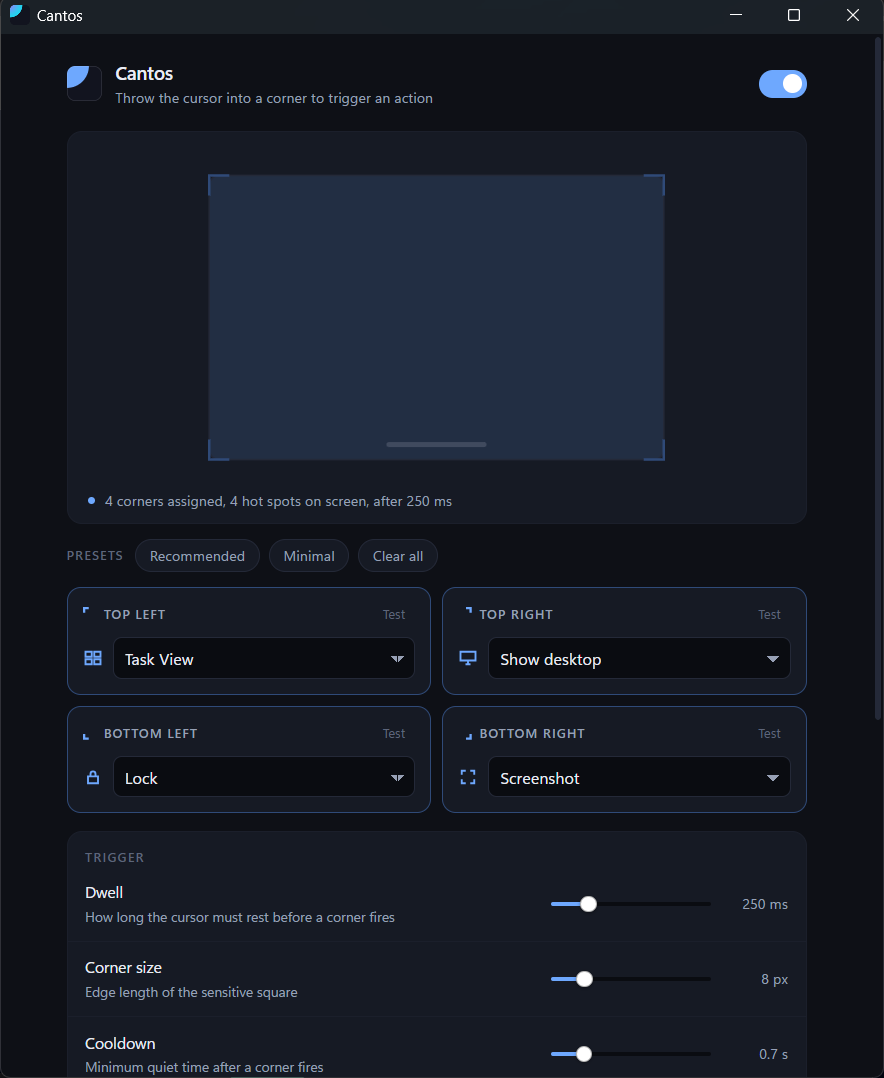
Throw the cursor into a corner of the screen and something happens. Task View or Mission Control, show desktop, lock, a screenshot, or any program you like.
A corner does not fire the instant you touch it. The cursor has to rest there for a moment, which is the difference between a hot corner and a booby trap. Overshoot toward a window's Close button and nothing happens, because nothing should.
One executable of about a megabyte, sitting in the tray (or the menu bar) on about 2 MB of memory. No installer bloat, no background service, no account.
On a Mac, Cantos works with macOS's own hot corners instead of adding a second set. It shows and edits the corners from System Settings, so they keep firing even with Cantos quit, and it adds what the Dock can't do: Spotlight, Finder, switching desktops, or a command of your own.
Highlights
- Actions for each platformTask View, virtual desktops, Quick Settings and clipboard history on Windows; Mission Control, Launchpad, Spotlight and Lock Screen on a Mac; Overview, desktops and screenshot on Linux.
- Custom commandsPoint a corner at any program, script, document, or URL, with arguments.
- Tunable triggerDwell, cooldown, and corner size, so it fires when you mean it and not when you don't.
- Hold a keyOptionally require Ctrl, Alt, Shift, or Win (Super on Linux, ⇧ ⌃ ⌥ ⌘ on a Mac) before a corner will fire.
- Snap-awareOn Windows, dragging a window into a corner stays a Windows Snap. No corner fires while a mouse button is down.
- Stays out of gamesOn Windows and Linux, suppressed over anything fullscreen. An ordinary maximised window still counts as ordinary.
- Multi-monitorOn Windows and Linux, the outer corners of the whole desktop, every corner of every screen, or the primary display only.
Privacy
Cantos makes no network requests. There is no telemetry, no account, and nothing is ever uploaded. Check for updates in the menu opens this page in your browser, which asks GitHub for the latest version; the app itself never does. The dependency tree contains no HTTP client at all, and the settings window is native (Win32, AppKit or GTK) and loads nothing from the internet.
Your settings are a single JSON file in %APPDATA%\Cantos
on Windows, ~/Library/Application Support/Cantos on a Mac,
or ~/.config/cantos on Linux, which you are welcome to read,
edit, or delete. On a Mac the corners themselves stay in the Dock's
preferences, where System Settings keeps them.
Tips
- On Windows, the bottom-left corner is the Start button and the bottom-right is Aero Peek, so both start out doing nothing. Assign them only if you do not use those.
- Edit
config.jsonby hand and the change applies within a second. No restart. - Every decision that can make a corner do nothing is written to the log, reachable from the tray menu.
- Set CANTOS_LOG=debug before launching for per-transition detail.
Frequently asked questions
Windows says it protected my PC
The download is not code-signed, so SmartScreen warns until a
release accumulates reputation. Click More info, then Run
anyway. Every release publishes a SHA256SUMS.txt if
you would like to verify the file first.
macOS won't open it the first time
Cantos is ad-hoc signed, not notarised. Right-click Cantos.app, choose Open, then Open again. On macOS 15 and later, go to System Settings > Privacy & Security and click Open Anyway. Installed with Homebrew, it opens straight away.
Why does macOS ask for Accessibility?
Cantos actions that press a shortcut, such as Spotlight or switching desktops, need it; macOS asks the first time one fires. macOS's own corner actions, such as Mission Control, never need it, because the Dock fires those.
On Windows, a corner does nothing while a certain app is focused
Windows refuses synthetic keystrokes aimed at a window running as administrator. That is a security boundary, not a bug. Actions that do not synthesise input, such as Lock, Screensaver, Turn display off, and Custom command, keep working regardless.
Does it work on Wayland?
Not reliably. Under Wayland an app can't read the cursor over other apps' windows, by design, so Cantos needs an X11 session; pick "Xorg" or "X11" at the login screen. Cantos says so in its log and settings window. GNOME and KDE have built-in hot corners for Wayland.
Does it need administrator rights?
No. The app runs as you on every platform. On Windows the installer asks for elevation only because it writes to Program Files. There is also a portable build that installs nothing at all.
Will it fire while I am gaming?
No. Fullscreen suppression is on by default and checks both the shell notification state and the foreground window's geometry, which covers borderless-windowed games and video players.
Does it work on multiple monitors?
Yes, in three modes. On L-shaped arrangements an outer corner that does not sit on a physical display moves to the nearest real screen corner, so it still fires.
Is it really free?
Yes. MIT licensed, and the source is on GitHub.